Export to Figma
Motiff supports two methods for exporting to Figma:
- Export files in bulk.
- Export as Figma (.fig) file.
- Copy layers to Figma.
Export files in bulk
Motiff supports exporting files in bulk as Figma (.fig) files.
Due to differences in how the two tools handle outline mask layers, when you import the exported .fig file into Figma, a layer with the same properties as the mask layer will be added under the outline mask group automatically to ensure consistent rendering.
If the outline mask is within an instance, layers cannot be added automatically, which may cause rendering differences.
- 1.In the left sidebar of the workspace, select a team. Make sure you have Can Edit or higher permissions for that team.

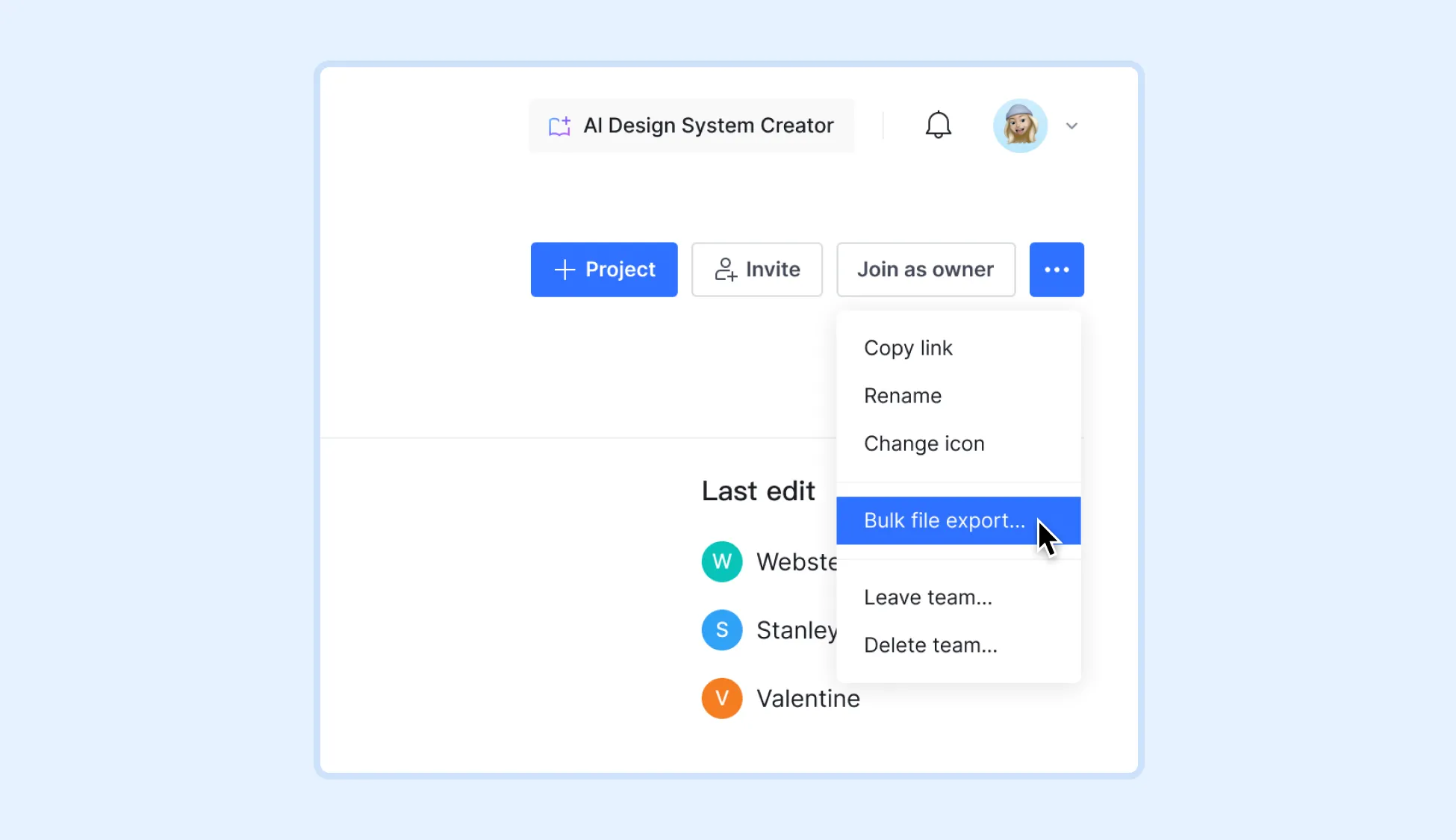
- 2.Click
 on the right and select Bulk file export… .
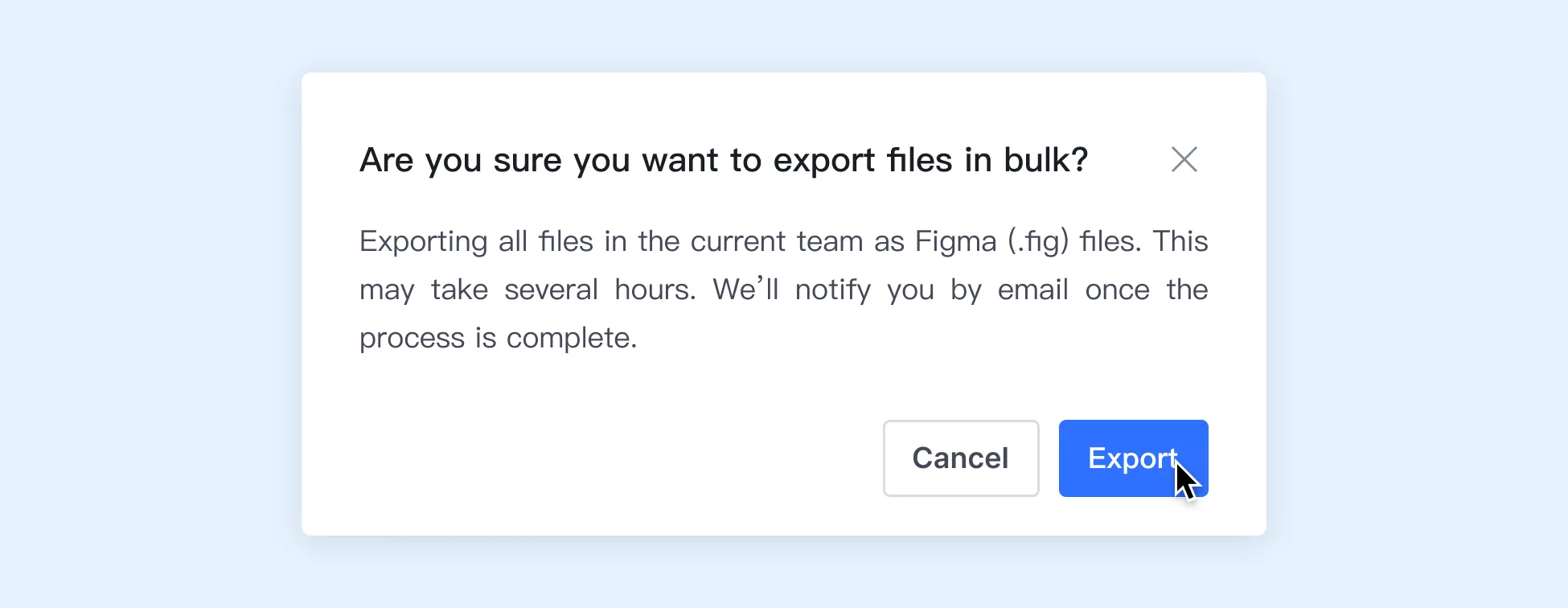
- 3.Confirm Export.
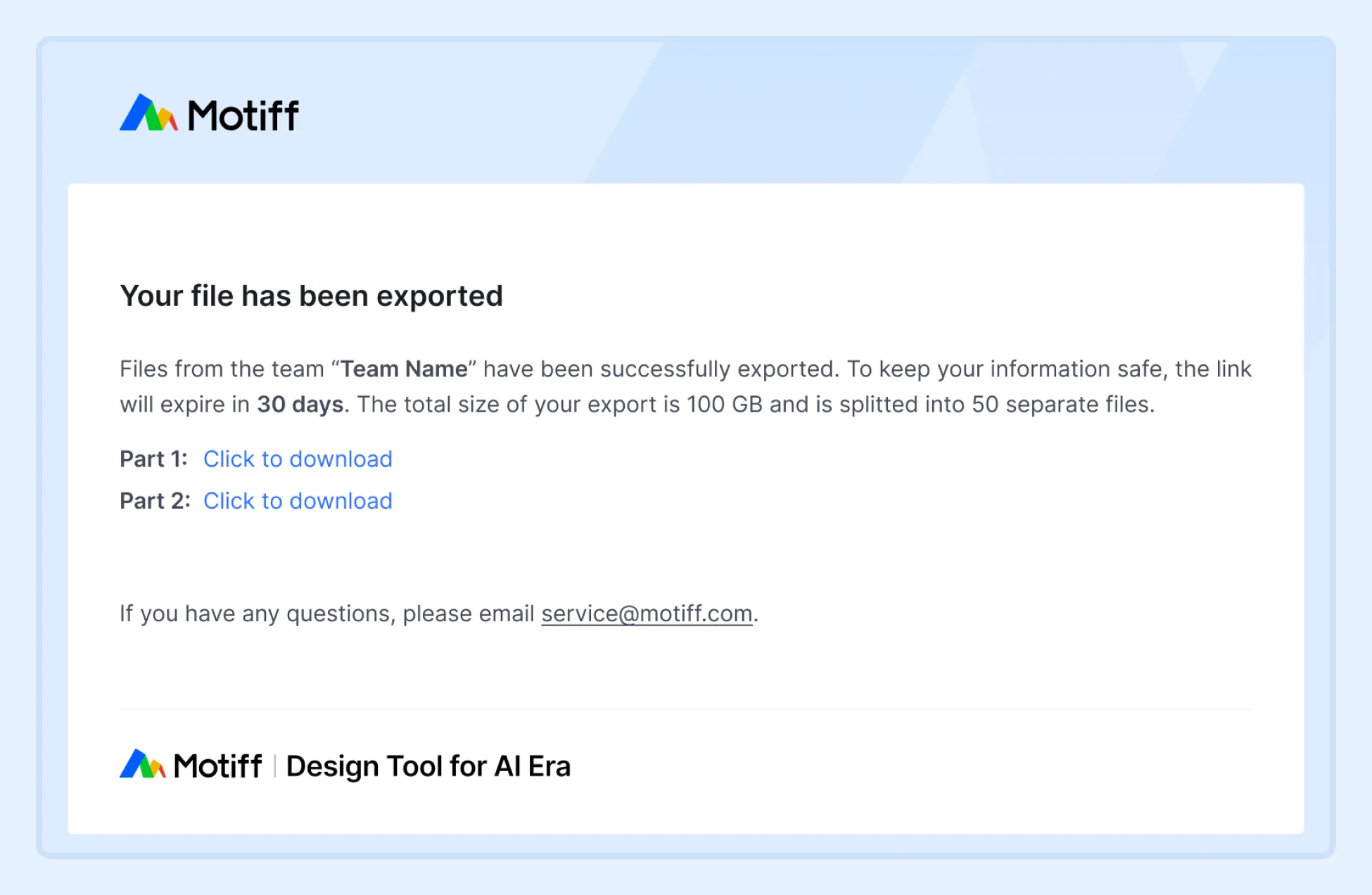
- 4.Motiff will begin preparing your export. Once the task is complete, a download link will be sent to you via email. Depending on the file size, this may take several hours.
- 5.After exporting, you can import the file into Figma and reconnect the libraries.
- Instances will be retained after export, but the main component will not be accessible. You can use Figma's Manage missing libraries feature to connect instances with new components. Figma Help Center
- Styles and color variables will be preserved after export but cannot be edited. You can associate them with new styles and variables via the property panel.
After importing the file into Figma, you should reconnect the libraries before editing the file, especially before copying and pasting between files, to avoid unexpected issues.
Save as Figma file
Motiff supports exporting files as Figma (.fig) files.
Tip: Due to differences in how the two tools handle outline mask layers, when you import the exported .fig file into Figma, a layer with the same properties as the mask layer will automatically be added under the outline mask group to ensure rendering consistency.
If the outline mask is located within an instance, layers cannot be automatically added, resulting in rendering differences.
- 1.Open the file you want to export.
- 2.Click
 - File - Save as Figma file… .
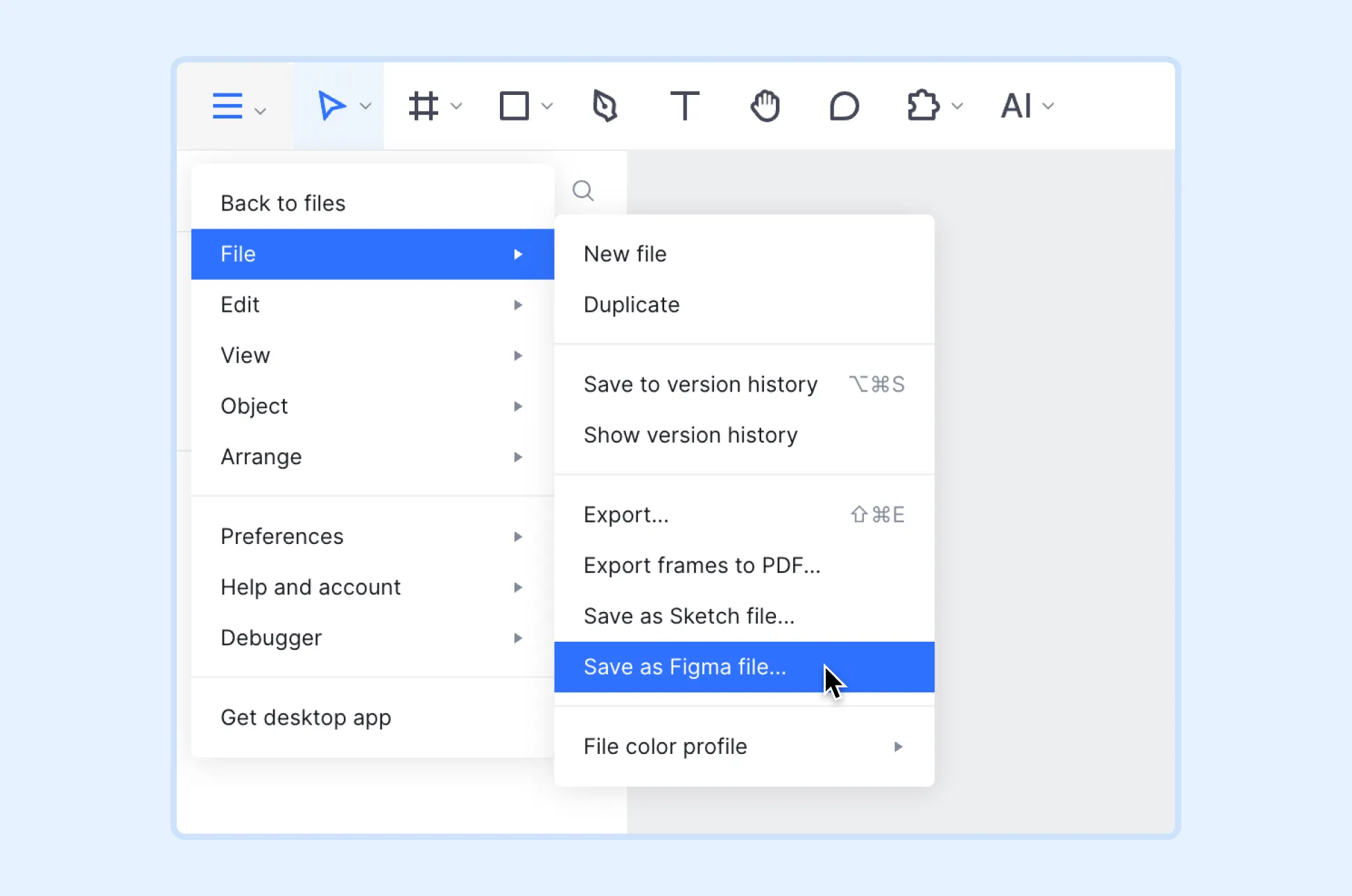
- 3.After exporting, you can import the file into Figma.
- 4.Restore library connections.
- Instances will be retained after export, but the main component cannot be accessed. You can use Figma's Manage missing libraries feature to connect instances with new components. Figma Help Center
- Styles and color variables will be preserved after export but cannot be edited. You can associate them with new styles and variables via the property panel.
Tip: After importing the file into Figma, you should restore library connections before editing the file, especially before copying and pasting across files, to avoid unexpected issues.
Copy Layers to Figma
You can use a plugin to copy layers from Motiff and paste them into Figma.
Note: Instances, styles, and variables will be automatically detached after copying to Figma.
- 1.Open the file you want to export.
- 2.Click
 in the toolbar,and select Copy to Figma.
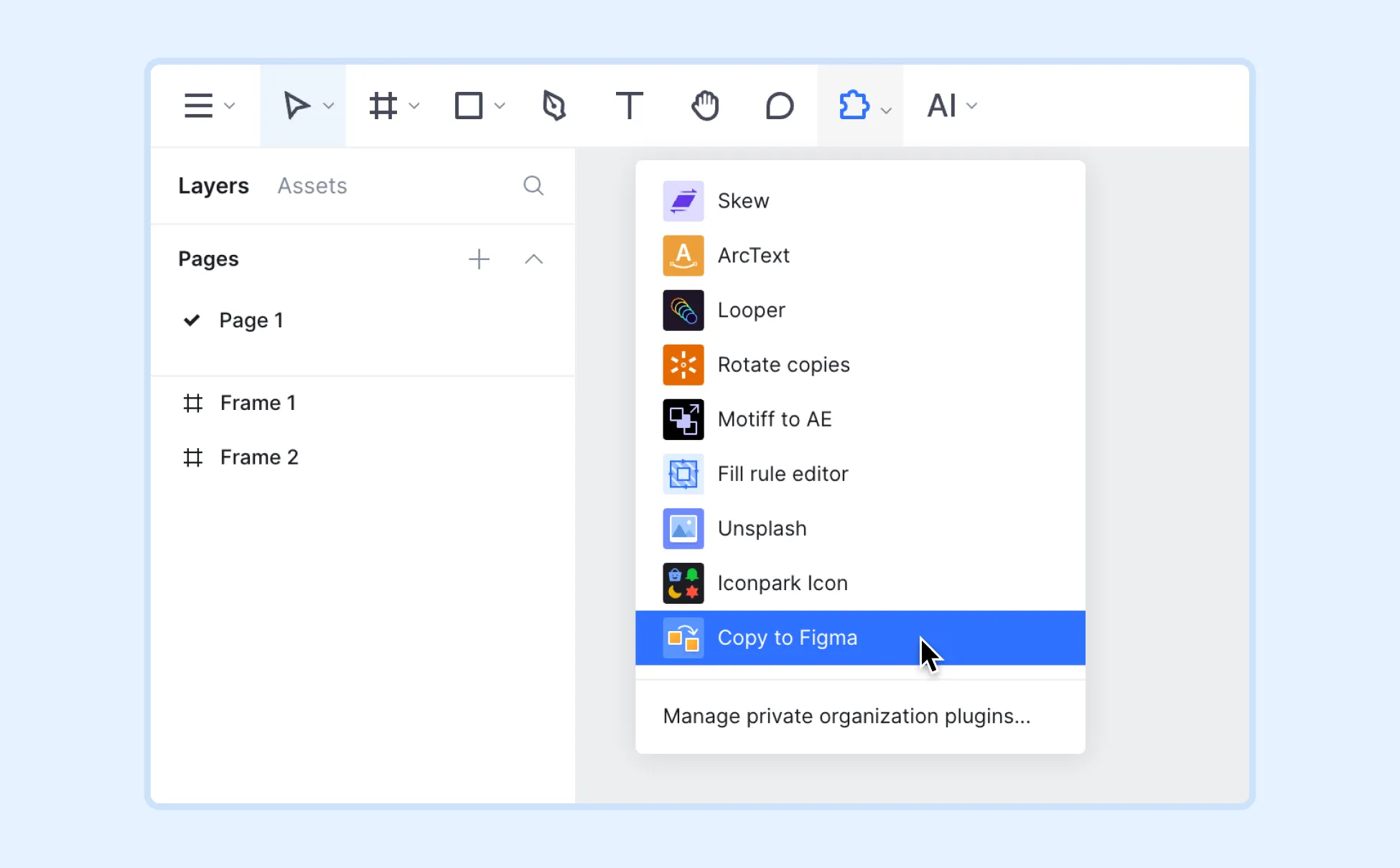
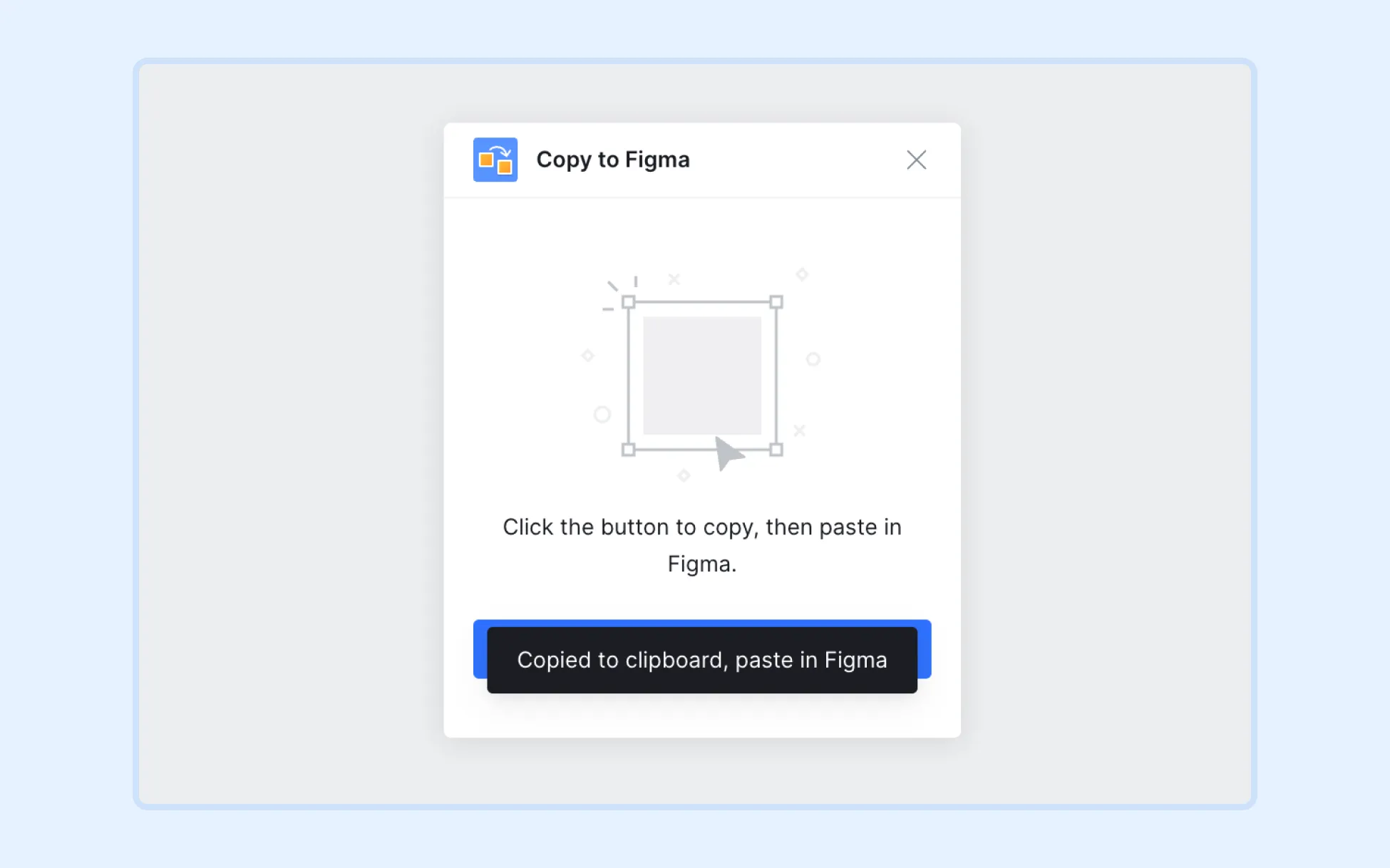
- 3.Select the layers you want to copy, then click the button Copy to Figma.
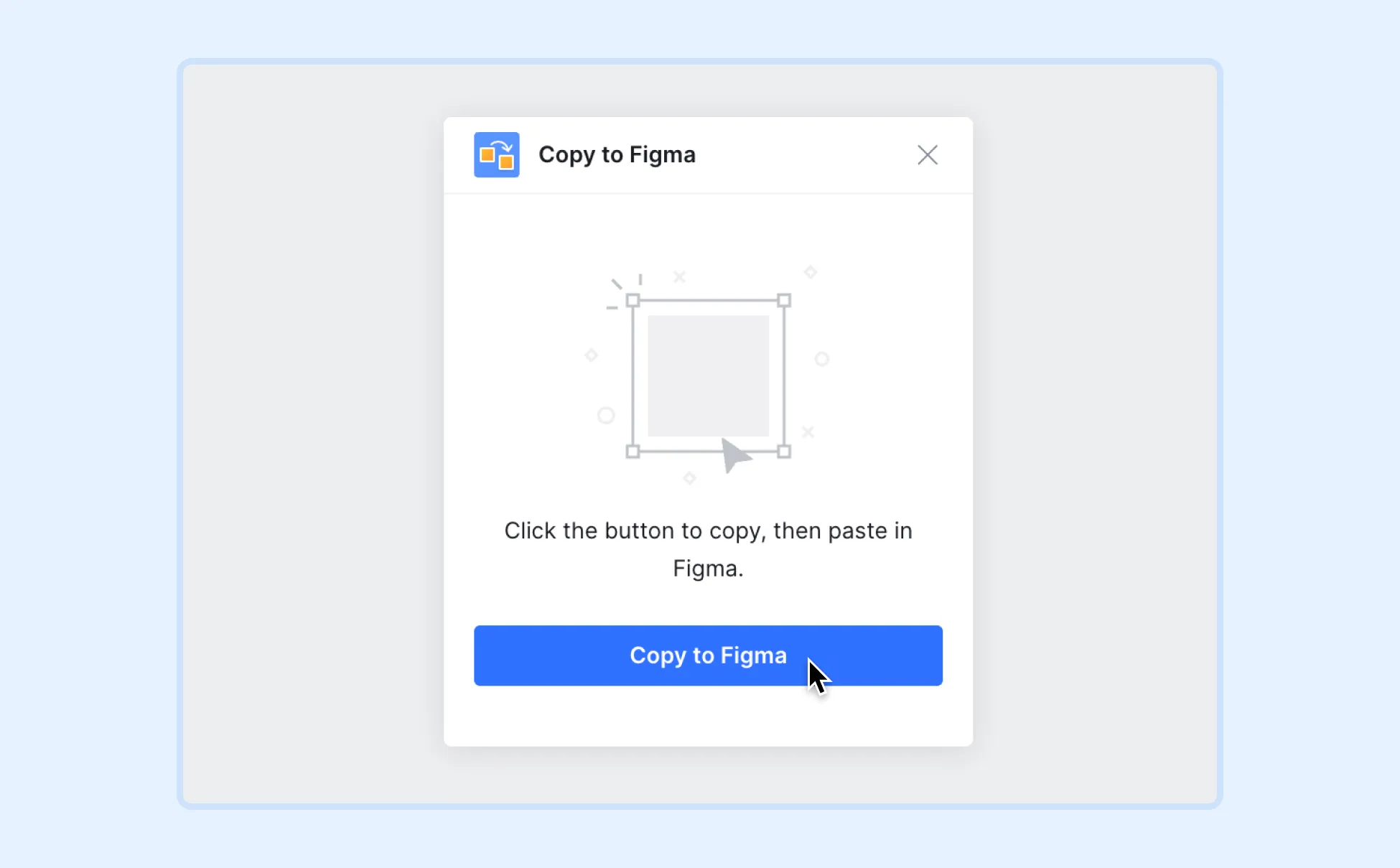
- 4.After the copying is complete, paste into the Figma canvas.