Write prompts for Motiff AI
Prompts are the way you communicate with AI. A good prompt helps Motiff AI understand your intentions clearly and generate UI designs that match what you have in mind.
This guide explains how to structure a strong prompt and how to use different input types—text, images, and references—to get the best results.
What makes a good prompt?
A clear prompt usually includes these elements:
- App type – What kind of product? Who is it for?
- Screens – The purpose of the page you want to design.
- Sections – Key modules, layout areas, and functions.
- Styles – Visual direction such as themes, colors, and patterns (or select from styling presets).
Tip:
❌ Avoid vague prompts: Design a nice-looking interface.
✅ Use clear and specific descriptions: A modern e-commerce homepage for young adults, featuring a top search bar, a carousel ad section, and a bottom navigation bar, with a blue and white color theme.
Common practices
1. Explore creative ideas
When brainstorming, use short prompts + Auto Styling. This gives you multiple versions quickly.
-
E.g.:
A CRM dashboard page for a gym called GymFlow.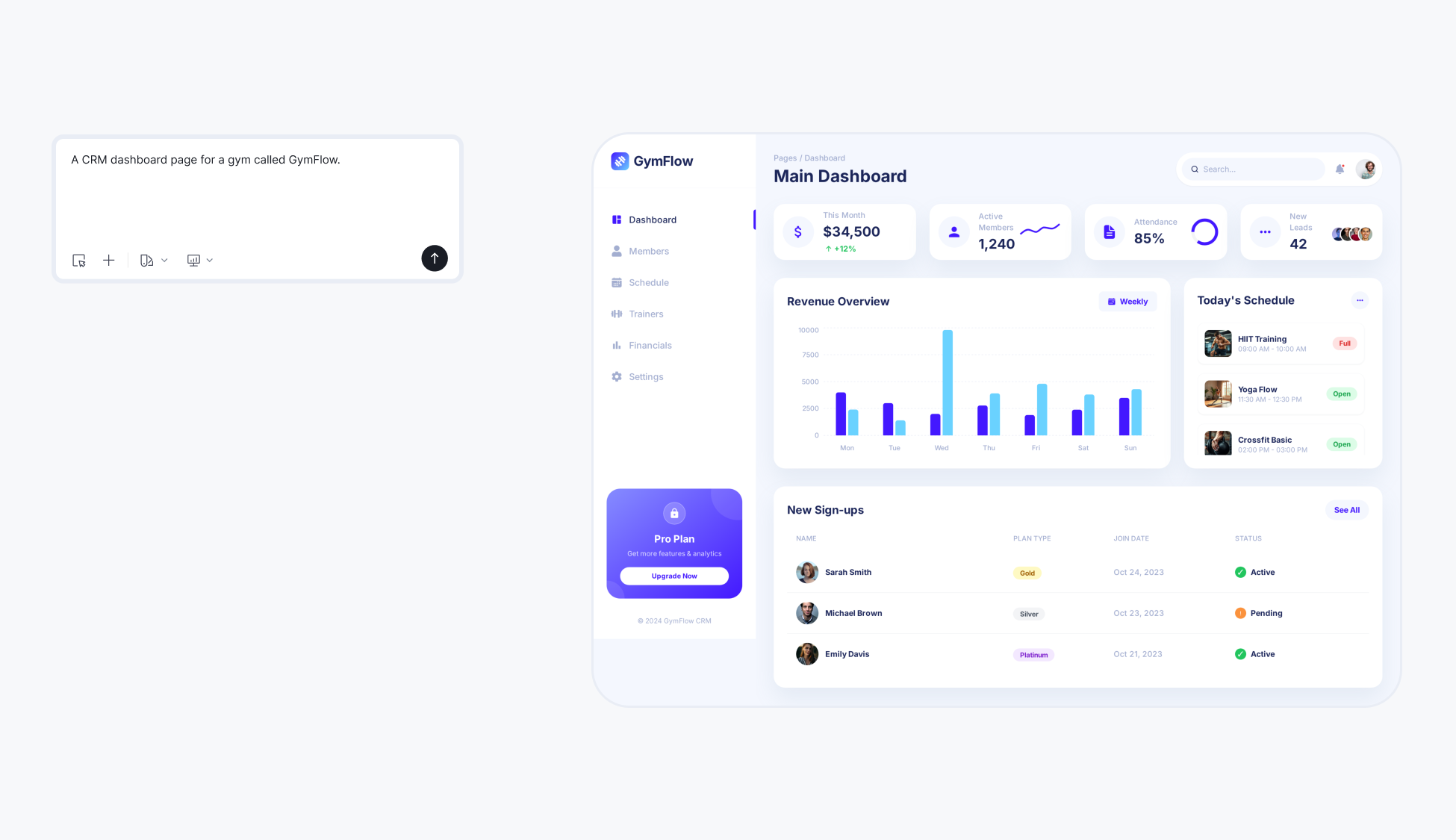
2. Generate structured designs
When you already know what you want, use detailed inputs to produce a close-to-final design.
Text prompt
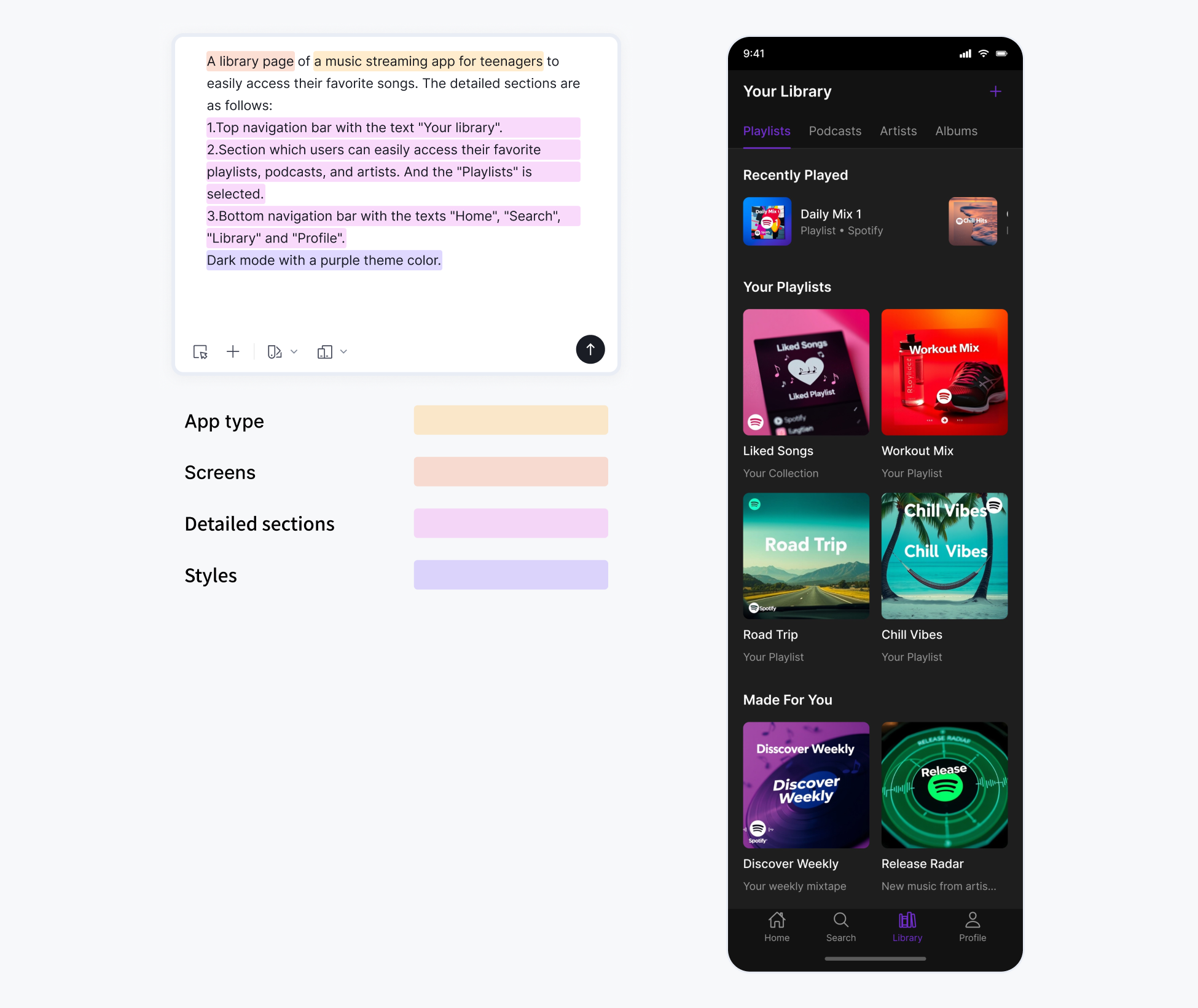
Example prompt breakdown for a music library page:
- App type: A music streaming app for teenagers.
- Screens: Music library page.
- Detailed sections: The top navigation bar has the title "Music library". Users can quickly access saved albums, artists, and podcasts with "Albums" selected. The bottom navigation bar has tabs for "Recommendations," "Discover," "Explore," "Activity," and "Profile".
- Styles: Dark mode with a purple theme color.
Tip: Motiff AI includes multiple styling presets. You can select one directly without writing out detailed style instructions.
Image uploads
You can upload wireframes, sketches, or full UI references. Motiff AI will analyze layout, structure, and visual style.
Two use cases:
- Replicate a visual style: Upload the image alone.
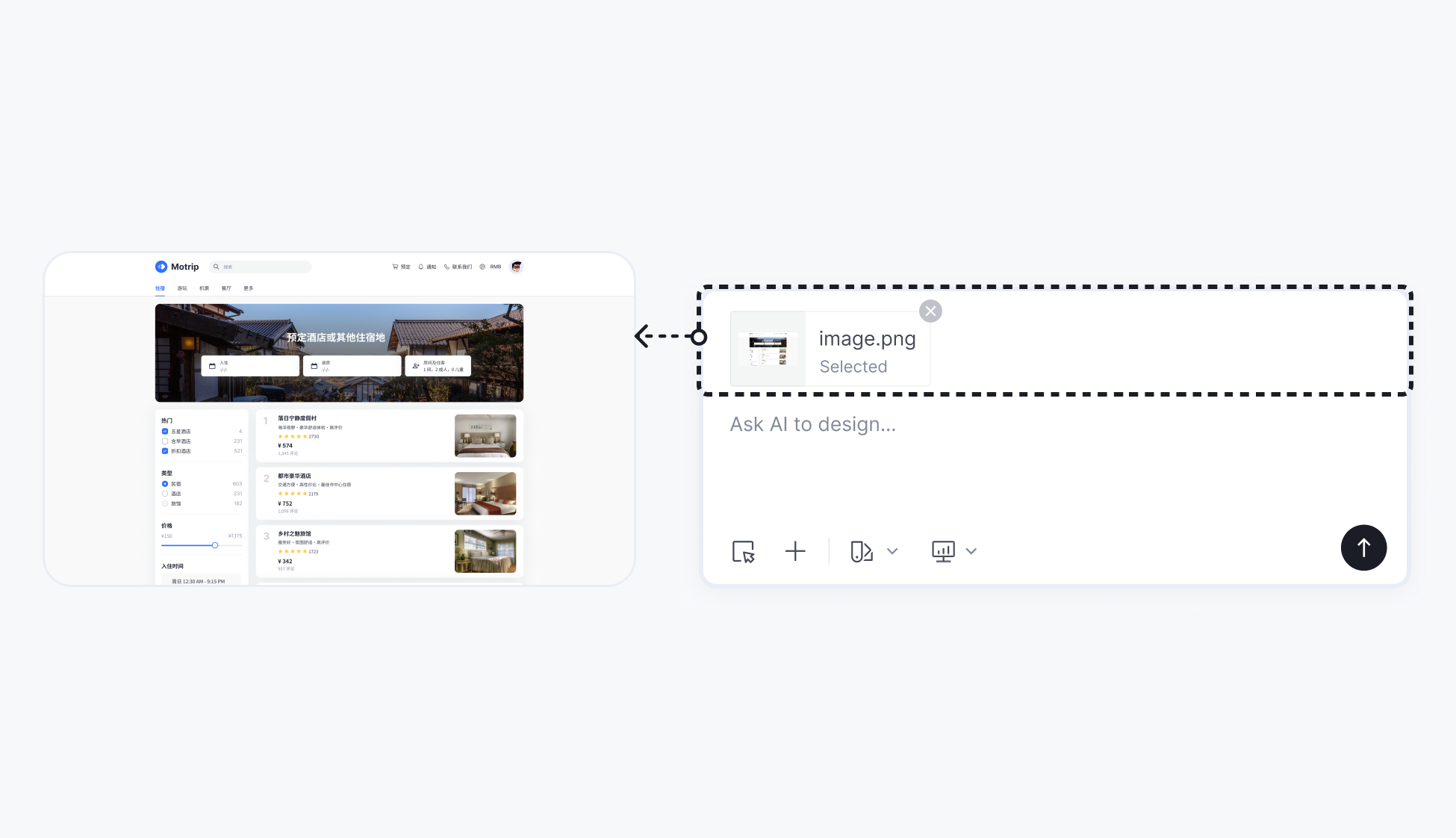
- Use layout as reference: Upload an image + add a text prompt for intent.
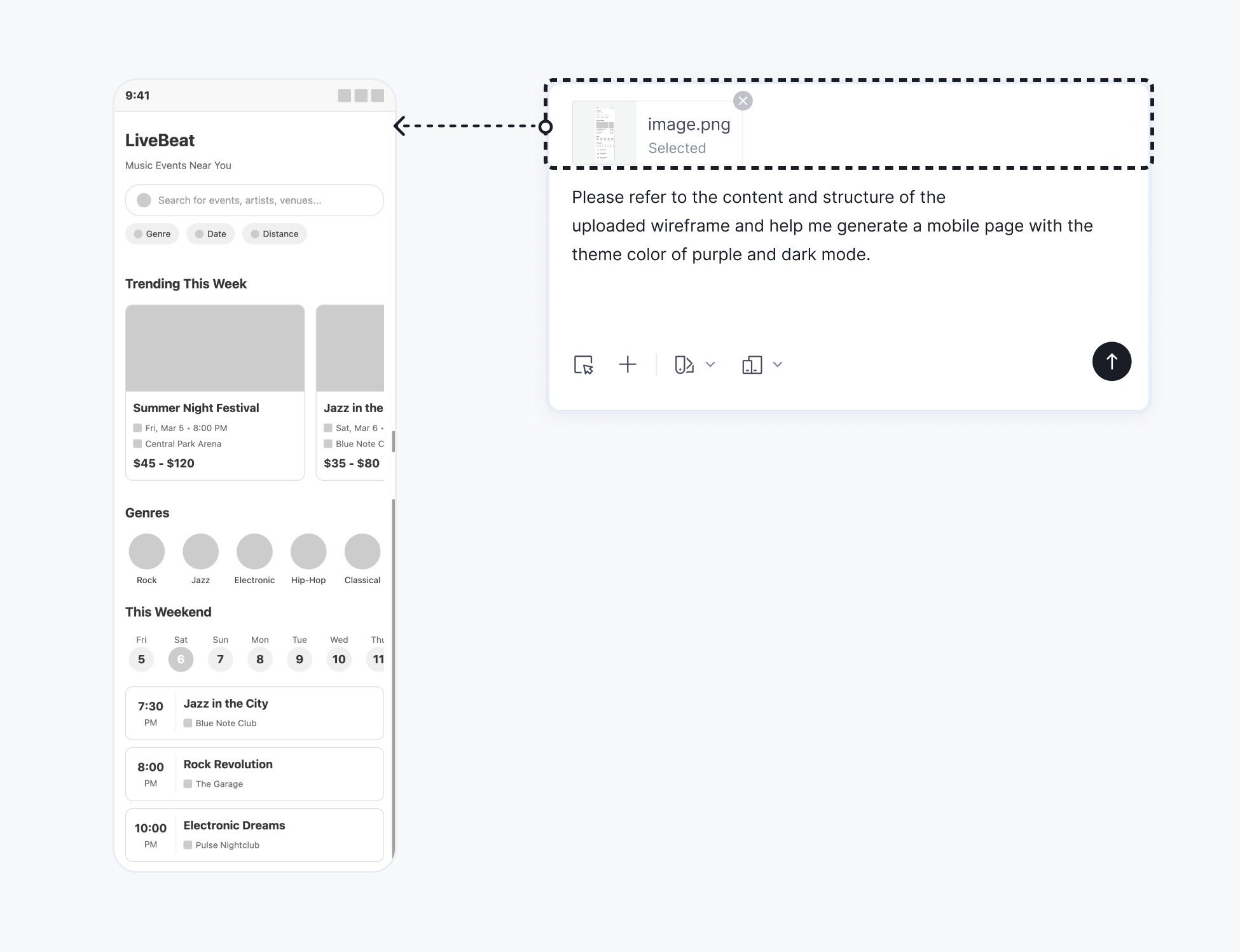
Example: Use Motiff AI to generate a complete set of interfaces
Motiff AI can help you design an entire product — step by step.
Step 1: Page planning
Tell Motiff AI what you want to build. Ask it to output a page plan without generating UI yet to save credits.
- E.g.:
I want to create a running log app that supports features such as creating running plans, displaying running records in real time, and running data statistics. How should I design this app? Please help me plan several pages first without generating them directly.
Step 2: Decide on design style
Once the page plan is confirmed, choose your style direction.
You can:
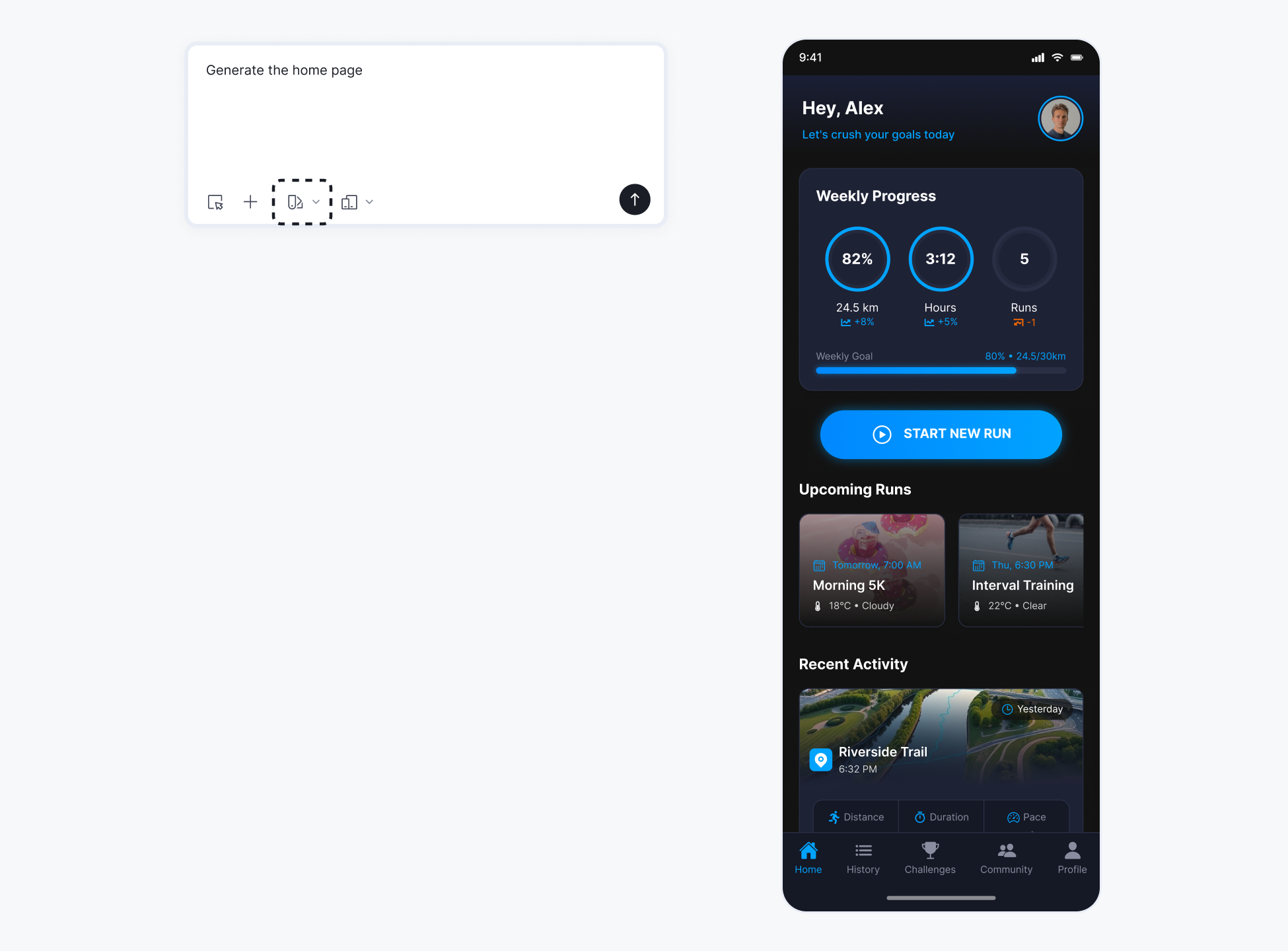
- 1.Let AI create freely
- E.g.: Use Auto Styling to generate the home page.
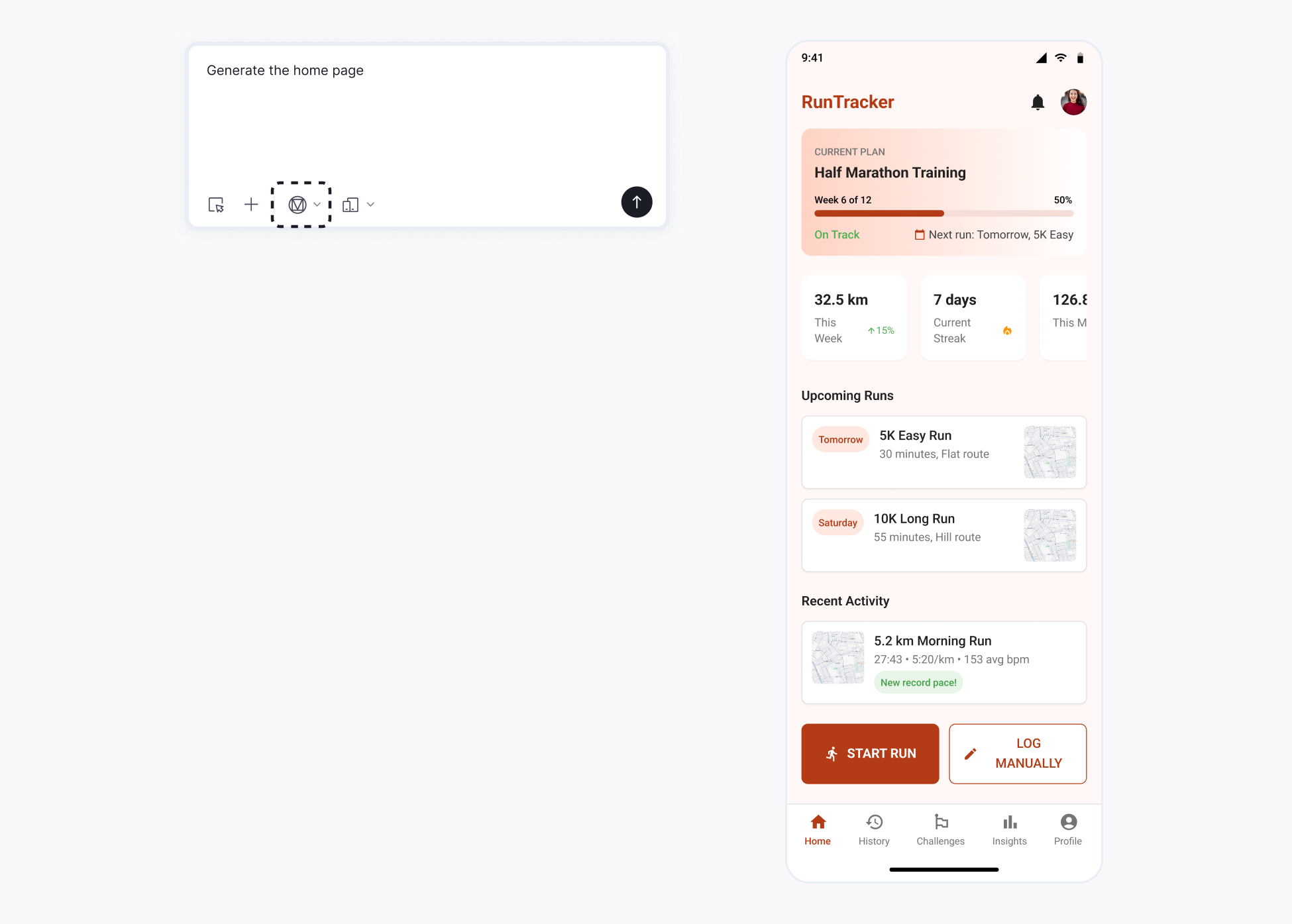
- 2.Use a preset design system
- E.g.: Use Material Design to generate the home page.
Step 3: Generate your full UI set
Ask Motiff AI to continue generating each main page.
-
E.g.:
Continue generating the History page./Continue generating the Challenges page./Continue generating the Community page./Continue generating the Profile page.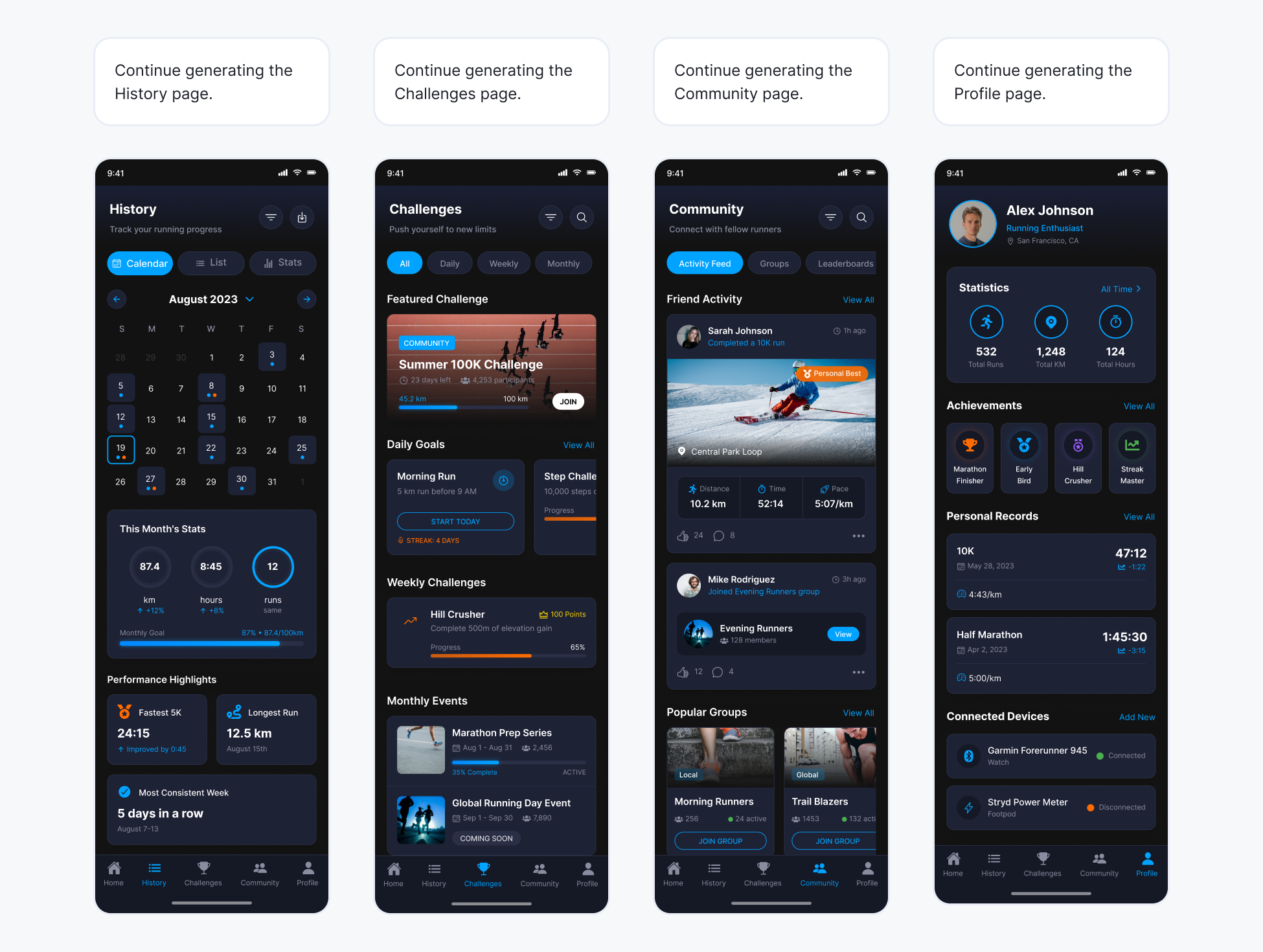
Generate secondary pages.
-
E.g.:
Generate the subpage that corresponds to clicking this button.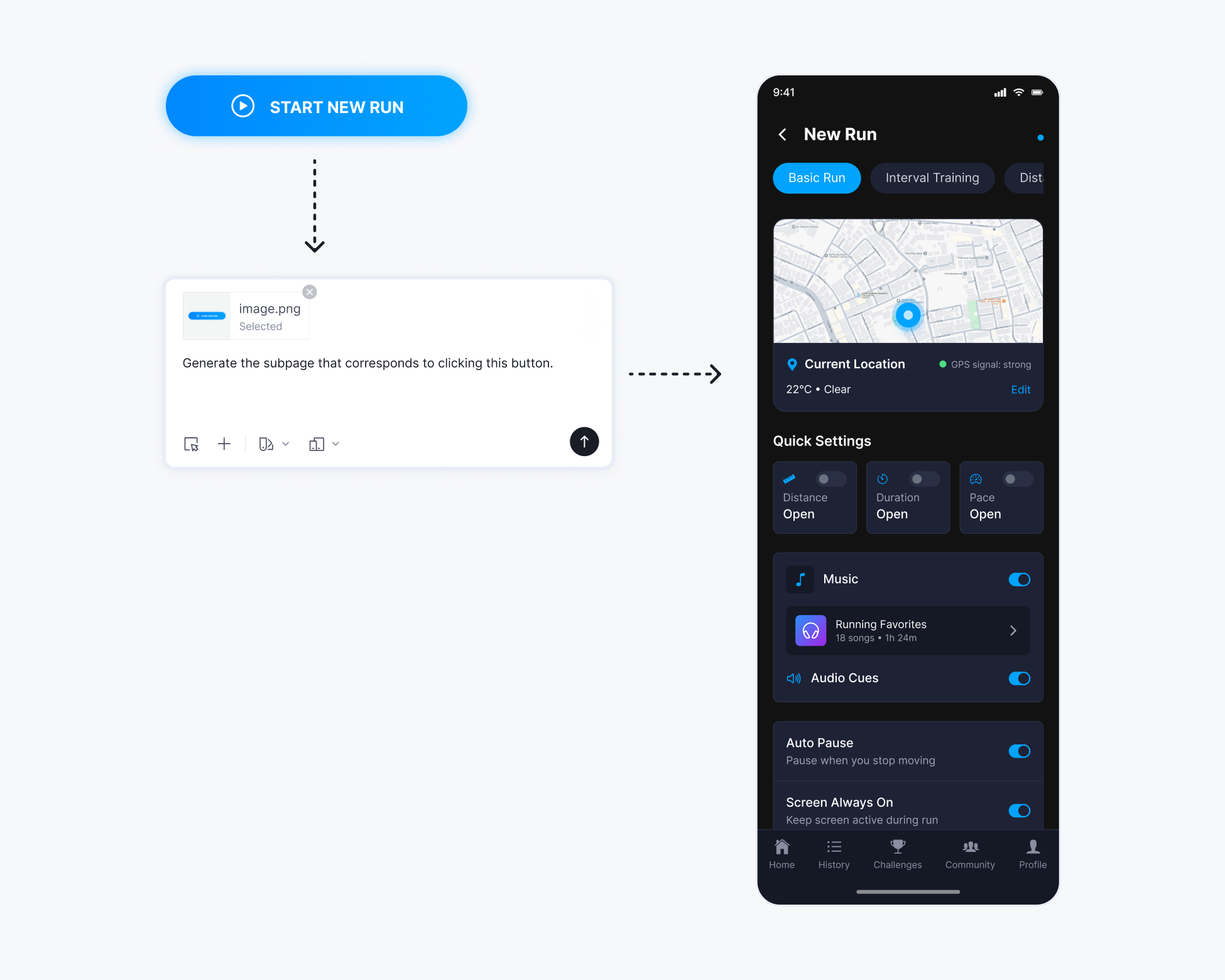
-
E.g.:
Continue generating the details page that appears after clicking this area.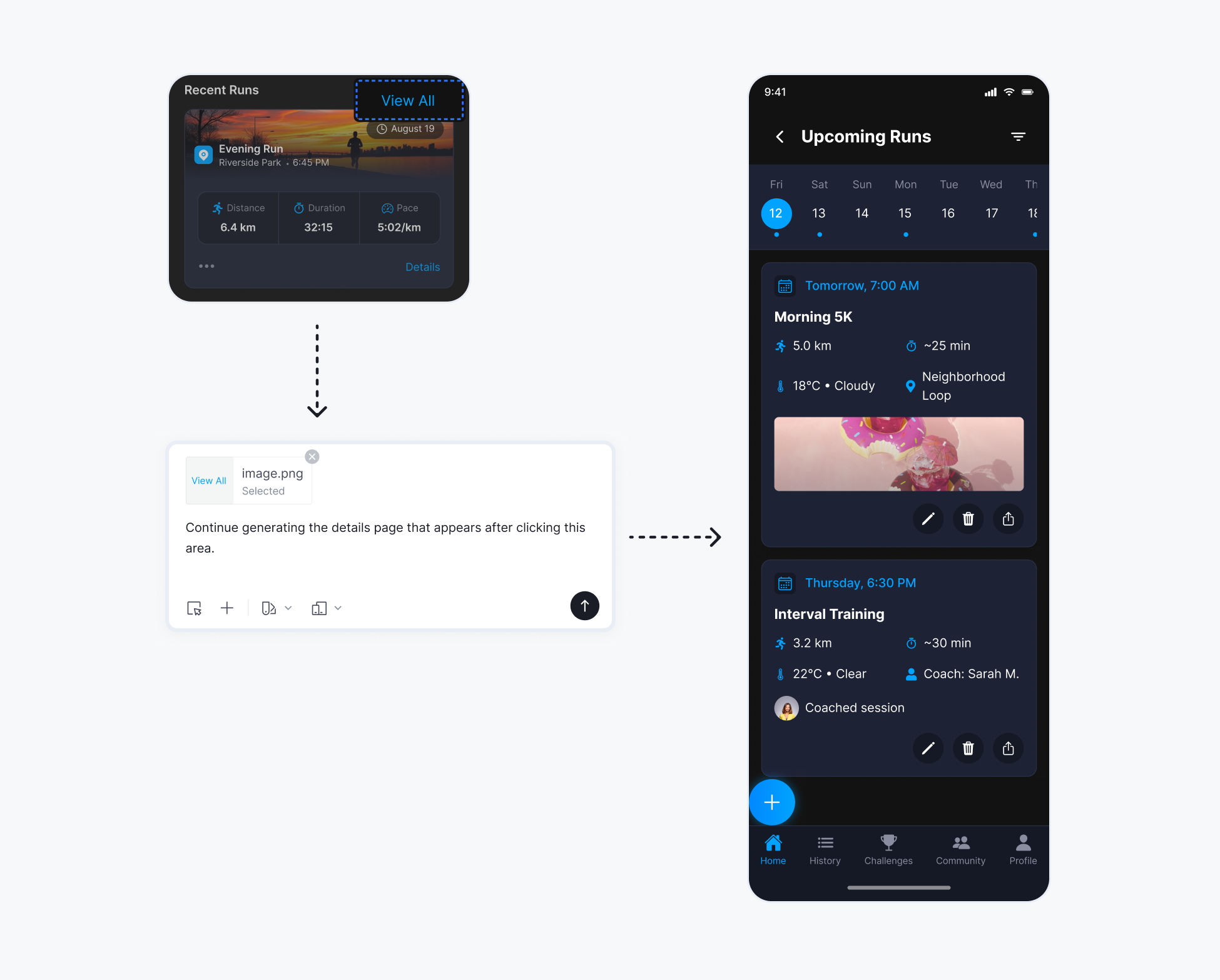
Step 4: Refine your results
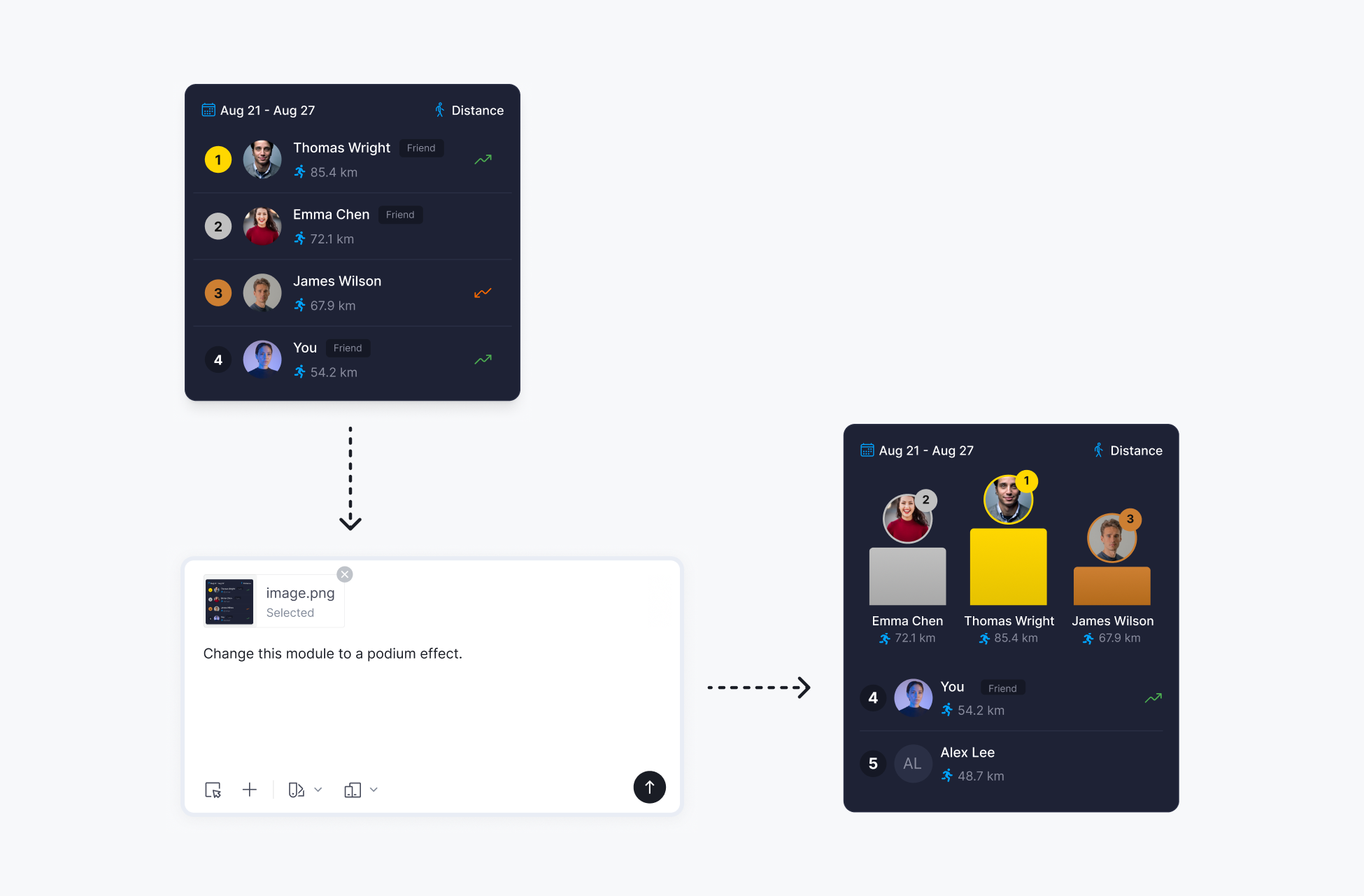
If something doesn't match your expectations, select the page or module and refine it with prompts.
-
E.g.:
Change this module to a podium effect.